What Is MT5 WebTrader?
Short Answer:
MT5 WebTrader is the online MetaTrader 5 platform accessed via web browser, offering real-time quotes, charting, order execution, technical indicators, and multi-asset trading, all without downloading software.
Key Takeaways
• MT5 WebTrader enables trading from a web browser without installation.
• It supports multiple asset classes including forex, CFDs, indices, and crypto.
• The interface includes advanced charting, technical analysis tools, and order types.
• NordFX provides a dedicated MT5 WebTrader terminal at - https://mt5real.nordfx.com/terminal.
• Ideal for traders who need flexibility and access from different devices.
Introduction
MetaTrader 5 (MT5) has grown into one of the most widely used multi-asset trading platforms, offering deep analytical tools and flexibility for both beginner and experienced traders. MT5 WebTrader specifically allows accessing the platform in a web browser — no installation, automatic updates, or device limitations. This article explains what MT5 WebTrader is, how it compares with the desktop version, key features, how to use it, and provides practical guidance with examples. We also include an overview of the NordFX MT5 WebTrader terminal and answer frequently asked questions.
What Is MT5 WebTrader
MT5 WebTrader is the web-based version of MetaTrader 5, developed by MetaQuotes. Unlike the downloadable desktop or mobile apps, WebTrader runs entirely in your browser. All core components — market watch, charts, order placement, and technical tools — are available online with secure encryption and real-time updates.
This means you can trade from any computer with an internet connection, whether at home, work, or a shared device. No installation removes compatibility issues and reduces time spent managing software updates.
MT5 WebTrader vs Desktop
The table below highlights key differences:
Feature | MT5 Desktop | MT5 WebTrader |
Installation | Required | Not Required |
System Resources | Uses local CPU/RAM | Runs in browser |
Expert Advisors (EAs) | Fully supported | Not supported |
Custom Indicators | Fully supported | Limited support |
Updates | Manual | Automatic |
Offline Access | Possible | Not possible |
Platform Speed | Faster | Depends on browser/internet |
In practice, WebTrader delivers most features that everyday traders need. However, advanced algorithmic automation like running Expert Advisors or custom scripts is best on the desktop platform.
Why Use MT5 WebTrader
Many traders choose MT5 WebTrader because it offers convenience without compromising functionality.
First, there’s no need to install anything. If you switch computers often, use shared or public devices, or simply want quick access without setup delays, WebTrader is ideal. Second, it has intuitive navigation and a familiar layout for anyone who has used MetaTrader before.
Finally, it’s fully cross-platform, working on Windows, macOS, Linux (via browser), tablets, and even some smartphones with large screens.
Core Features of MT5 WebTrader
MT5 WebTrader includes many powerful tools to help you analyze markets and manage trades. Understanding these features helps you make better decisions.
Market Watch
Market Watch lists all available instruments, such as:
• Major and minor forex pairs
• Commodities
• Cryptocurrencies
• CFDs
You can customize the list, filter by categories, or search for specific symbols. Real-time prices display bid and ask rates.
Charting and Time Frames
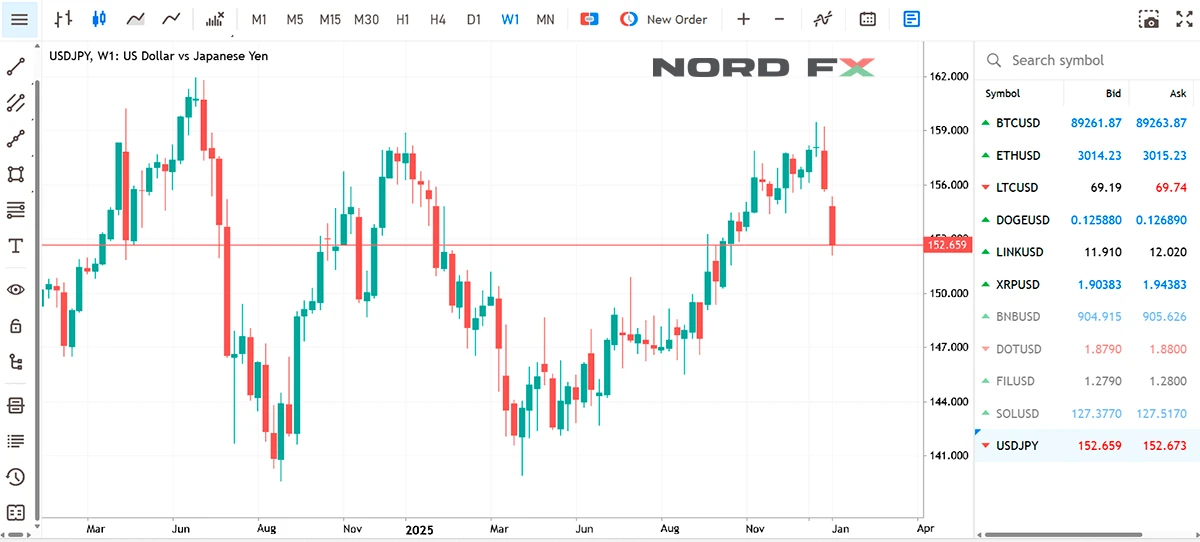
Charts are fundamental for technical analysis. MT5 WebTrader supports multiple chart types:
• Line
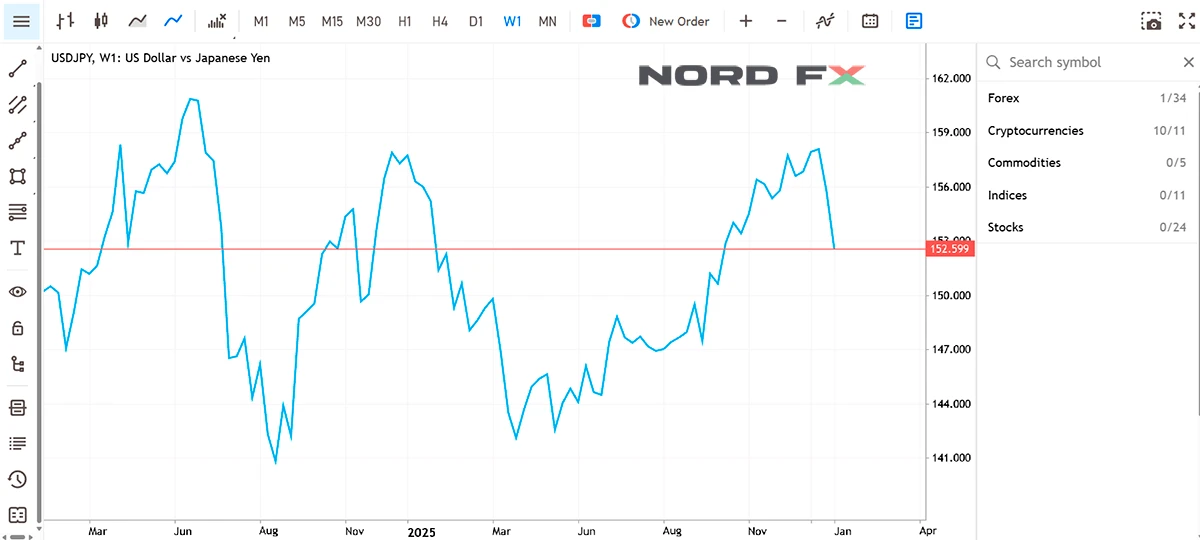
• Bar
• Candlestick
You can view different time frames such as M1 (1-minute), M5, M15, H1 (1-hour), H4, D1 (daily), and longer. Locking the chart’s time frame and switching between them helps you see trends and patterns over time.
Technical Indicators
MT5 WebTrader offers built-in technical indicators that help you interpret price movements:
• Moving Averages (SMA, EMA)
• MACD
• RSI (Relative Strength Index)
• Bollinger Bands
• Fibonacci tools
These indicators appear directly on charts or in sub-windows and help guide entry/exit decisions.
Order Types
MT5 WebTrader supports a range of order types:
• Market orders — executed immediately at current price
• Pending orders — executed when price reaches a targeted level
• Stop Loss and Take Profit — risk management tools
You can enter and modify orders with a few clicks or taps.
Trading History and Reports
A built-in account history section shows your closed trades, profit/loss, and performance metrics. Reviewing past trades is essential for refining strategy.
How to Access MT5 WebTrader
Accessing MT5 WebTrader is straightforward:
- Open your preferred web browser.
- Enter the MT5 WebTrader URL provided by your broker.
- Log in with your trading account credentials.
- Select the server and begin trading.
There is no software installation required. The platform works on Chrome, Edge, Safari, and most modern browsers.
Using NordFX MT5 WebTrader Terminal
NordFX offers its own MT5 WebTrader terminal, which gives you access to live trading and market data directly from your browser. The terminal is available at https://mt5real.nordfx.com/terminal.
This version of MT5 WebTrader is configured to connect to your NordFX trading account, supporting real-time order execution across forex, indices, commodities, and cryptocurrencies. You can use the same credentials from your MT5 account to log in and start trading instantly.
Logging In
When you navigate to the NordFX MT5 WebTrader page, the login screen requests:
• Your account number
• Password
• Server selection
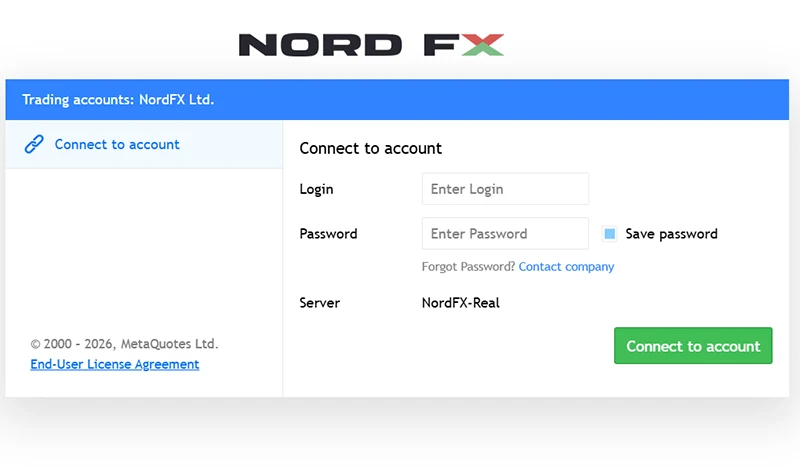
After logging in, the interface loads your account details, including balance, open positions, and available instruments.
Features Available on NordFX Terminal
NordFX’s WebTrader offers the standard MT5 WebTrader feature set:
• Interactive charts with multiple time frames
• A broad range of technical indicators
• Order management tools
• Market watch and instrument search
• Trade history and reporting
Because it runs in the browser, you can trade while at work or traveling without installing any application.
Practical Tips for Using the NordFX WebTrader
• Bookmark the terminal URL for quick access.
• Save your login securely; avoid saving credentials on public devices.
• Regularly review charts and update indicators based on your trading style.
• Use risk management orders (Stop Loss, Take Profit) on every trade.
Navigating the MT5 WebTrader Interface
The MT5 WebTrader interface is designed to be intuitive.
Main Window Components
When you log in, typically you see:
• Market Watch panel
• Chart window
• Toolbox panel
• Navigator panel
Each panel serves a purpose:
• Market Watch shows live instrument prices.
• Charts display price action and indicators.
• Toolbox provides trade, history, news, alerts, and mailbox tabs.
• Navigator lists accounts and available scripts or indicators (limited in WebTrader).
Customizing Your Workspace
You can rearrange chart windows, change chart types, and customize colors. Saving chart templates speeds up analysis and helps maintain consistency in your trading methods.
Placing Trades in MT5 WebTrader
Entering and managing trades is one of the central functions of MT5 WebTrader.
Step-by-Step Trade Entry
- Select an instrument in Market Watch.
- Right-click and choose “New Order” or click the trade button.
- Choose volume (lot size).
- Set Stop Loss and Take Profit levels (optional but recommended).
- Press Buy or Sell.
Setting Stop Loss and Take Profit
Stop Loss and Take Profit help automate exits:
• Stop Loss limits losses if price moves against you.
• Take Profit secures gains when price reaches your target.
Using these orders prevents emotional decisions during market volatility.
Modifying Orders
After placement, you can modify orders:
• Change Stop Loss and Take Profit.
• Close part or entire position.
• Add trailing stops (if supported by your broker’s WebTrader version).
Charting and Technical Tools
Charting helps visualize price action and make analytical decisions.
Time Frames and Patterns
Different time frames reveal different trends:
• Short-term traders focus on M1–M30.
• Swing traders use H1–H4.
• Long-term views often use D1 and above.
Patterns such as double tops, head and shoulders, and triangles appear across time frames and help anticipate potential price moves.
Using Indicators
Indicators provide statistical signals:
• Moving Average crossover might suggest trend changes.
• RSI can alert overbought or oversold conditions.
• MACD divergence may indicate momentum shifts.
Combining indicators and price action increases confidence in trade decisions.
Practical Trading Tips for MT5 WebTrader Users
Trading successfully is not just about tools — it’s about discipline.
Start With a Demo
Practice in a demo environment before risking real capital. Demo accounts mirror live markets without financial risk.
Define Your Strategy
Whether scalping, day trading, or swing trading, have a clear plan:
• Entry criteria
• Exit signals
• Risk guidelines
Manage Risk
A simple risk rule is to never risk more than 1–2% of your account on a single trade. Adjust your lot size based on stop-loss distances.
Keep a Trading Journal
Record setups, emotions, and outcomes. Reviewing past trades reveals strengths and weaknesses that help refine your approach.
Table: Example Trading Plan Template
Component | Example |
Trading Style | Day trading |
Time Frames | M15, H1 |
Entry Signal | RSI oversold + bullish candlestick |
Exit Signal | Price hits resistance or RSI crosses down |
Risk per Trade | 1% of account |
Stop Loss | 20 pips |
Take Profit | 40 pips |
Common Mistakes With WebTrader
Even with a solid platform, traders make errors:
• Overtrading — too many positions without clear setups.
• Ignoring risk management — skipping Stop Loss orders.
• Trading without a plan — decisions based on gut feeling.
• Not adapting to market conditions — using one strategy for all markets.
Avoiding these improves your consistency.
FAQs
What devices support MT5 WebTrader?
MT5 WebTrader works on any device with a modern web browser: desktop computers, laptops, tablets, and some smartphones. There is no need for downloads.
Can I use Expert Advisors (EAs) on WebTrader?
No. MT5 WebTrader does not support automated trading with EAs. For algorithmic systems, use the desktop MT5 platform.
How secure is MT5 WebTrader?
MT5 WebTrader uses encrypted connections between your browser and broker’s servers. Always ensure you use trusted networks and keep your credentials secure.
Is MT5 WebTrader free to use?
Yes. Brokers typically provide access for free as long as you have a trading account. Check with your broker for specific access requirements.
How do I switch time frames on charts?
Right-click on the chart or use the time-frame toolbar to switch between M1, H1, D1 and other views depending on your strategy.
Can I trade multiple accounts in WebTrader?
This depends on broker support. Some allow logging into multiple accounts from the same browser; others require separate sessions or credentials.
This article explained MT5 WebTrader in detail, covering features, how it works, practical tips, and specifics about the NordFX MT5 WebTrader terminal. Use this guide to build confidence and clarity as you begin or develop your trading journey with MT5 WebTrader.
Meet the Author
Vanessa Polson is a marketing manager at NordFX with over twelve years of experience in online marketing within the financial services industry. She has developed and executed data-driven campaigns across search, social, and display channels in in-house environments. Her work focuses on translating complex financial products and trading tools into clear, practical educational content, giving her a broad and well-rounded view of the global trading landscape.
Connect with Vanessa on LinkedIn.
Повернутися Повернутися